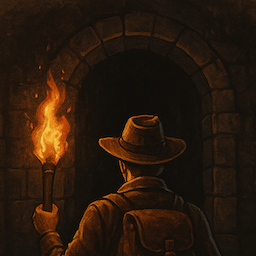
Adventurebook is a plugin that allows you to create interactive storybooks or roleplay-like adventure books on your WordPress site. With Adventurebook, you can craft engaging narratives where readers can make choices that influence the outcome of the story. Key Features: Interactive Storytelling: Cr
PricingFree downloadThe WordPress.org download is free. Pro versions, add-ons or external services may cost extra.
CompatibilityRequires WordPress 5.2 and PHP 7.2.
SourceWordPress plugins · Nov 14, 2026
01 / Source details
Aboutthistool.
Adventurebook is a plugin that allows you to create interactive storybooks or roleplay-like adventure books on your WordPress site. With Adventurebook, you can craft engaging narratives where readers can make choices that influence the outcome of the story.
Key Features:
Interactive Storytelling: Create stories with multiple paths and endings based on reader choices.
Easy-to-Use Interface: User-friendly tools to design and manage your adventure books.
Customizable Options: Tailor the appearance and functionality of your adventure books to fit your style.
Multimedia Support: Enhance your stories with images. Add audio to pages that will be played automatically when the page is loaded (if your browser permits).
Character and Item Management: For “Game”-type Adventurebooks, manage items and creatures that characters can interact with.
Combat System: A simple turn-based combat system for “Game”-type Adventurebooks, allowing characters to engage with creatures.
Script Editor: Create custom scripts to add dynamic elements to your adventure books.
Responsive Design: Ensure your adventure books look great on all devices.
Whether you’re an author looking to publish interactive stories or a teacher wanting to create engaging learning materials, Adventurebook provides the tools you need to bring your narratives to life. Get started today and captivate your audience with immersive storytelling!
See it in action:
Travel through Cologne (german) (Story-type): https://koeln.adventurebook.net
Travel on the Camino (german) (Game-type): https://camino.gaida.de
Relaxing Journey (english, incl. Google Translate) (Story-type): https://adventurebook.net/relaxing-journey/
The Morning After (german, incl. Google Translate) (Story-type): https://adventurebook.net/der-morgen-danach/
Play Demoworld (english, incl. Google Translate) (Game-type): https://adventurebook.net/play-demoworld/
The “Demoworld” Adventurebook is also included in the premium version of the plugin as demo content to help you get started.
How to Use
01After activating the plugin, navigate to the ‘Adventure Books’ menu in your WordPress dashboard.
02Click on ‘Add New Adventure Book’ to start creating your adventure book frame. Just enter a title and maybe a short description.
03Save the adventure book.
04Add pages by editing your adventure book and using the ‘Add New Book Page’ button on the right side of the editor. Alternatively, you can manage your book pages using the ‘Book Pages’ menu. Be sure to set the filter to the correct book.
05When editing a book page, you can add choices by using the ‘Add Decision Option’ button at the bottom. Each choice can link to another (existing) page in the book, allowing for branching narratives. Be sure to first create the target pages before linking them.
06You can add a single image to each book page using the ‘Book Page Image’ option in the editor.
07After having added a decision to a page, you can restrict the choice to characters that have a specific item. This applies to Game-type Adventurebooks. To do this, choose “Restriction Type” -> “Item” and then enter the code of the item that the character must have to be able to choose this option. E.g. if you restrict a decision to the item with code “key_gold”, only characters that have this item in their inventory can choose this option.
How to setup a Game-type Adventurebook
08Create a page for character management with the shortcode [adventurebook_character_overview] .
09Set this page in the Adventurebook settings.
10Create a new Adventurebook of type “Game”.
11Create a page for the book with the shortcode [adventurebook id="X"] , where X is the ID of your adventure book.
12The adventurebook will be embedded in this page.
13Create items in the “Adventurebook Items” menu. You can upload an image for the item and define stats. For details, see below.
14Create creatures in the “Adventurebook Creatures” menu. You can upload an image for the creature and define stats. For details, see below.
15Create book pages and add item spawns / creature spawns to the pages. For details, see below.
16Set the starting page by selecting the bookpage of your choice on the Adventurebook edit page.
Items
Items are defined in the “Adventurebook Items” menu. Every item has a code, a name, a description, stats and an image. The code is a unique human readable identifier for the item, e.g. “key_gold”. Stats are depending on the chosen Combat System. In the free version, only the “Simple” combat system is available.
E.g. a longsword could be defined by:
code: sword_longsword
name: Longsword
description: A sharp longsword.
stats: Slot=Weapon,Damage=10,Value=15
image: (upload an image of a longsword)
Creatures
Creatures are defined in the “Adventurebook Creatures” menu. Every creature has a code, a name, a description, hostility, attackability, xp value, stats, loottable and an image. The code is a unique human readable identifier for the creature, e.g. “goblin”. Stats are depending on the chosen Combat System. In the free version, only the “Simple” combat system is available.
The loottable defines which items the creature can drop when defeated. The format is: item_code:chance:min_amount:max_amount E.g. sword_longsword:20:1:1 means that the creature has a 20% chance to drop 1 longsword when defeated. For gold/money, use the item code “money”. E.g. money:100:5:15 means that the creature will always drop between 5 and 15 gold when defeated.
Combat Systems
To make the plugin more flexible, different combat systems can be chosen. Currently, only the “Simple” combat system is available in the free version. In the “Simple” combat system, the currency is set to “Gold”.
Character Stats
Character Stats for the “Simple” combat system are:
Health (Defaults to 35)
CurHealth
Wealth (Gold) (Defaults to 10)
XP (Defaults to 0)
Slots (Defaults to ‘Weapon,Shield,Armor’)
internal use only: * initiative (Defaults to 0) * attack (Defaults to 0) * armor (Defaults to 0) * defense (Defaults to 0)
Creature Stats
Creature Stats for the “Simple” combat system are:
Health
Damage
Armor
Item Stats
Item Stats for the “Simple” combat system are:
Value how much (Gold) the item is worth when selling it to a shop
Armor how much armor the item provides when equipped
Damage how much damage the item provides when equipped
Slot if the slot of an item matches any slot of a character, the item can be equipped by the character. In the Simple Combat System, the available slots are ‘Weapon’, ‘Shield’ and ‘Armor’. Only one item can be equipped per slot.
Examples:
A sword could have the slot ‘Weapon’ and damage 10.
A shield could have the slot ‘Shield’ and armor 5.
A leather armor could have the slot ‘Armor’ and armor 3.
A chain mail could have the slot ‘Armor’ and armor 7.
If a player has a leather armor equipped, his armor stat is 3. If he equips the chain mail, the leather armor will be unequipped and the armor stat will be 7.
Combat
When a character visits a page with creature spawns, he can choose to attack a creature.
The combat is turn-based. For each turn, the initiative is calculated randomly.
The character and the creature attack each other until one of them has 0 or less health.
If the character wins, he gets XP and Gold (Wealth) according to the creature’s stats. The creature is removed from the page and will respawn after the set respawn time.
If the character loses, he is moved back to the starting page / his respawn point and his health is fully restored.
If the initiative of the character is higher than the initiative of any hostile creature on the page, he surprises the creature and gets a free turn before the combat starts.
If an enemy is not hostile, but can be attacked, the character can choose to attack it, turning it hostile.
Damage dealt: Damage Value (Attacker) – Armor Value (Defender), minimum 1 damage.
Technical Details
The following information is for the Adventurebook Type “Game”.
Every item in the world/game has a definition. The definition is stored in the table _adventurebook_item_definitions . The definition contains non-mutable information about the item.
id
code (unique human readable identifier, used for restrictions e.g.)
name
description
stats
image-url
Item Spawns (table _adventurebook_item_spawns )
Defines a spawn point for an item. The spawn point is a zone. When a new character is created, all items that have a spawn point will be added to the zone (page).
item_id
page_id
Items (table _adventurebook_items )
Defines an item that a character can find in his adventure.
id
code
character_id
location_id
Scripts (table _adventurebook_scripts )
Defines a script that can be attached to a page and is executed when the page is visited / reloaded.
id
code (unique human readable identifier, used to attach the script to a page)
name (will not be displayed to the user)
commands (the commands that will be executed, array in json format)
SCRIPT COMMANDS
Scripts can be attached to book pages and are executed when the page is visited / reloaded, e.g. each time the user clicks on a decision that leads to this page, or when attacking, equipping, unequipping, buying, selling, using an item. A script can be attached to an adventurebook page by selecting the script in the “Script” dropdown on the page edit screen. Every script line needs a unique key (it is a jumpmark). The second input field is the command. The third input field is optional and can contain parameters for the command, usually separated by “|”.
The following script commands can be used in a script.
output text Outputs the given text to the user. Supported placeholders: {var:varname}: Replaced with the value of the game variable “varname”.
{stat:statname}: Replaced with the value of the character’s stat
See it in action
Screenshots & previews.
Adventurebook embedded in a page.Adventurebook embedded in a page with different decisions.Adventurebook book management.Adventurebook item management.Adventurebook item editor.Adventurebook book page editor.Character management embedded in a page ("Game"-type Adventurebook only).A fight with a creature in a "Game"-type Adventurebook.
02 / Source details
Gettingstarted.
01Upload the adventurebook folder to the /wp-content/plugins/ directory.
02Activate the plugin through the ‘Plugins’ menu in WordPress.
03Use the ‘Adventure Books’ menu item to create and manage your adventure books.
For a step-by-step video guide, visit:
03 / Source details
Frequently asked questions.
How do I install Adventurebook?
To install Adventurebook, download the plugin from the WordPress plugin repository or upload the adventurebook folder to your /wp-content/plugins/ directory. Then, activate the plugin through the ‘Plugins’ menu in your WordPress dashboard. IMPORTANT: For game-type Adventurebooks, you need to have a page for the character management with the shortcode [character_overview]. Set this page in the Adventurebook settings. After having created an adventure book, you need to create a page for the book with the shortcode [adventurebook id=”X”], where X is the ID of your adventure book. The adventurebook will be embedded in this page.
How do I create a new adventure book?
After activating the plugin, navigate to the ‘Adventure Books’ menu in your WordPress dashboard and click on ‘Add New Adventure Book’ to start creating your adventure book.
How do I add pages to the book?
You can add pages by editing your adventure book and using the ‘Add New Book Page’ button on the right side of the editor. Manage your book pages using the ‘Book Pages’ menu.
How do I create choices for the readers?
When editing a book page, you can add choices by using the ‘Add Decision Option’ button at the bottom. Each choice can link to another (existing) page in the book, allowing for branching narratives. Be sure to first create the target pages before linking them.
How do I restrict access to certain pages?
This applies to Game-type Adventurebooks. After having added a decision to a page, you can restrict the choice to characters that have a specific item. To do this, choose “Restriction Type” -> “Item” and then enter the code of the item that the character must have to be able to choose this option. E.g. if you restrict a decision to the item with code “key_gold”, only characters that have this item in their inventory can choose this option.
Can I add images and videos to my adventure books?
You are allowed to add a single image to each book page using the ‘Book Page Image’ option in the editor.
Do WordPress Galleries work in Adventurebook pages?
Yes, WordPress Galleries work in Adventurebook pages. You can create a gallery using the standard WordPress gallery shortcode. Please let the gallery link to the media file so that the images open in a lightbox when clicked.
Is Adventurebook compatible with all themes?
Adventurebook is designed to work with most WordPress themes. However, for the best experience, we recommend using a theme that supports custom post types. Make sure that you have enough width to display the book content properly if using the “Game” type Storybook. You need space for the image, the description and the character stats.
Is there a premium version available?
Yes, there is a premium version of Adventurebook available with additional features and support. Visit our website for more information: https://adventurebook.net
FinderPress Media Auditor helps site administrators scan for broken images, missing Media Library files, unreachable media URLs, and other media issues across WordPress content. Use it to audit images, video, audio, PDFs, featured images, and attachment files without sending scan data to an external
The Accepted Payment Methods plugin is a straightforward, lightweight solution that enhances your website by displaying visually appealing icons of the payment methods you accept. This plugin is ideal for a variety of websites, including e-commerce platforms, service-oriented websites, and informati