Simple Page Ordering
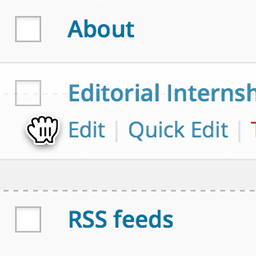
Order your pages, hierarchical custom post types, or custom post types with “page-attributes” with drag and drop right from the built in page list. Drag and drop the page into the desired position. No new admin menus pages, no clunky, bolted on user interfaces. Drag and drop on the page or post-type
Order your pages, hierarchical custom post types, or custom post types with “page-attributes” with drag and drop right from the built in page list.
Drag and drop the page into the desired position. No new admin menus pages, no clunky, bolted on user interfaces. Drag and drop on the page or post-type screen.
The plug-in is “capabilities aware” – only users with the ability to edit others’ pages (editors and administrators) will be able to reorder content.
Integrated help is included: click the “help” tab at the top right of the screen.
Contributing
We’d love to have you join in on development over on GitHub .
Screenshots & previews.
- 01Install either via the WordPress.org plugin directory, or by uploading the files to your server.
- 02Activate the plugin through the ‘Plugins’ menu in WordPress.
- 03Get to work reordering your content!
Frequently asked questions.
Why can’t I reorder my posts?
Generic posts are not displayed by menu order – they’re displayed by chronology. You can theoretically add menu ordering to posts in your code (theme functions.php, plug-in) by using:
add_post_type_support( 'post', 'page-attributes' );
Can I make my custom post type take advantage of this plug-in?
Yep. When you register the post type, include the page-attributes feature in the support list. This will add a Sort by Order option to the filter links above the drop downs. Once you sort by order, you can drag and drop the content.
'supports' => array( 'title', 'editor', 'page-attributes' ),
Alternatively, when you register the post type, set hierarchical to true – hierarchical post types natively order by menu order.





